Microsoft Copilot on SharePoint makes knowledge easier to find, content easier to understand and daily work with pages, documents and lists more efficient. In practice, however, it is not only the Copilot function itself that decides, but above all how cleanly SharePoint is set up. Because Copilot reinforces what is already there: a good structure is easier to use, poor authorizations become a risk more quickly.
Many companies start with Copilot and then realize that the real bottleneck is not AI, but SharePoint hygiene. If teams have stored files “somewhere,” wildly created sites and generously distributed permissions for years, Copilot won't fix this world. It just makes them visible more quickly.
That's exactly why it's worth taking a structured look: What can Copilot really do in SharePoint today, where are the limits, and what basics must be right so that your Copilot can use it securely and effectively in the Microsoft environment.
Microsoft Copilot in SharePoint: What exactly Copilot can do today
Microsoft Copilot on SharePoint supports in particular when understanding and creating content. Typical tasks include: summarize the content of a page or document, extract key points, answer questions about existing content and derive next steps.
Copilot is particularly useful where knowledge is distributed: project pages, manuals, process descriptions, wikis, QMS documents, or team sites. Instead of clicking through multiple pages, users can jump to the relevant passage more quickly.
Microsoft bundles CoPilot in SharePoint features in a separate overview, including entry points for typical workflows and use cases (Microsoft Support).
In practice, this is the biggest added value: Copilot reduces search time and context switching. Less “where is that”, more “what is the current rule.”

Create pages and publish content
Microsoft Copilot on SharePoint is visibly evolving from “giving answers” to “building content.” One example is the AI-supported creation of SharePoint pages directly from Microsoft 365 Copilot in order to publish content faster and capture knowledge in a more structured way.
Microsoft has published its own announcement for this, which shows how SharePoint Page Creation is embedded in the Copilot workflow and why this is relevant for communication and knowledge sites (Microsoft Tech Community).
This is exciting for companies because it speeds up publishing. At the same time, responsibility for standards is increasing: Page templates, content blocks, approval processes and ownership must be clear, otherwise “more content” will be created more quickly instead of “better content.”
The pragmatic way is: Start with a few, clearly defined page types, such as project update, process description, FAQ page, sales enablement page. AI then becomes a scaling lever instead of a wild growth of content.
Lists, structures and agentic construction
Microsoft Copilot on SharePoint 2026 is moving more towards “agentic building,” i.e. creating and structuring SharePoint artifacts using natural language. This applies not only to pages, but also to creating structures that are crucial for collaboration.
In a recent SharePoint announcement, Microsoft describes new “agentic building” updates, explicitly including Copilot as an accelerator for building and managing SharePoint environments (Microsoft Tech Community).
This is a clear trend: SharePoint should not just be storage, but a buildable and controllable system in which teams get from demand to the appropriate structure more quickly. As a result, the focus is shifting even more to governance, because structures can be created more quickly.
If your SharePoint is already confusing today, “build faster” won't automatically help. Then you need order first, then automation.
Microsoft Copilot in SharePoint: Why permissions are critical
Microsoft Copilot on SharePoint generally respects existing access rights. That is exactly protection and risk at the same time. Protection because Copilot shouldn't see “more” than a user. Risk because many companies have historically shared too generously in SharePoint.
In the privacy and security documentation for Microsoft 365 Copilot, Microsoft describes that Copilot only displays data that the person has access to anyway, and that the underlying authorization model enforces this access boundary (Microsoft Learn).
That sounds reassuring, but it leads to a typical co-pilot moment: Teams suddenly notice how many they have opened internally “All Employees” or “Everyone except external users.” Copilot is then not the cause of the problem, but he makes it noticeable.
The most important Copilot preparation step is therefore an oversharing check: Which sites, libraries and folders are shared too widely even though they contain sensitive content.
Identify and specifically reduce oversharing
Microsoft Copilot on SharePoint makes oversharing not only “possible” but above all “effective.” If a document happens to be broadly readable, Copilot makes it easier to find, easier to summarize and therefore the content can be used more quickly.
In everyday life, this is often the moment when data protection, works council or security take action. Not because Copilot had “hacked” something, but because knowledge suddenly flows faster than before.
In practice, simple prioritization helps: first HR and Finance, then Legal and Contracts, then Strategy and Product. These areas typically contain content that should not be widely visible.
A second lever is cleaning up legacy sites. Old project pages often remain open even though the project is long over. Copilot makes these legacy issues relevant again.
If you want to reduce oversharing, you need two things: clear ownership per site and a recurring review, not just a one-time project.
Restricted SharePoint Search as a starting lever
Microsoft Copilot on SharePoint Relies heavily on enterprise search and co-pilot experiences that make content discoverable across sites. If your governance is not yet ready, a temporary start lever can help: Restricted SharePoint Search.
Microsoft describes Restricted SharePoint Search as a temporary measure to control which sites appear in Enterprise Search and Copilot Chat or agency responses. At the same time, it is emphasized that this is not a security boundary and does not change any permissions (Microsoft Learn).
This is important because it prevents a common misunderstanding: Restricted search is no substitute for correct authorization management. It is a “brake lever” to start Copilot in a controlled manner while your governance follows suit.
This is practical for pilots: You can first limit Copilot to curated areas of knowledge and then gradually expand them.
Copilot in SharePoint: Information architecture is Copilot fitness
Microsoft Copilot on SharePoint gets better the more clearly your content is structured. This includes sites, libraries, folder logic, naming, page templates, and metadata.
When content is neatly maintained, Copilot can answer more relevant questions. If content is duplicate, out-of-date, or contradictory, Copilot will not automatically resolve the discrepancies. Then you'll get answers faster, but not necessarily better ones.
A typical quality killer is multiple “final_final_v3” documents in different libraries. Copilot can find it, but it won't know which document is your default if you don't make it clear.
The pragmatic approach: Establish a “single source of truth” for each area of knowledge, clearly mark it, and consistently archive old things. That's boring, but it's the difference between co-pilot as ROI and co-pilot as confusion.
Using metadata and content types correctly
Microsoft Copilot on SharePoint benefits massively from metadata. Not because users love metadata, but because metadata creates meaning: version, status, validity, area, product, region, owner.
If you consistently use content types and a few mandatory fields, the quality of search hits, filters and therefore also Copilot responses increases. This reduces the risk of hallucinations indirectly because Copilot comes across “correct” sources more often.
The trick is to keep metadata minimal. Three to five useful fields that are actually maintained are better than twenty fields that no one fills out.
Consistency is also crucial for knowledge pages: same sections, same terminology, same structure. Copilot then recognizes patterns and users find them faster.
Regulate external approvals and guest accesses cleanly
Microsoft Copilot on SharePoint It quickly becomes a governance issue as soon as external collaboration is involved. SharePoint thrives on sharing links, guest accounts, and external projects. This is where unclear authorizations often arise.
If external approvals are too broad, this can also have internal consequences: Teams lose track of what is externally visible, and Copilot can “make” internal content more “visible” because it is shared too widely internally anyway.
Clear policies are important: Who is allowed to share externally, which domains are allowed, which link types are allowed, how long are links valid, and how are they cleaned up after the end of the project.
Another point is ownership: Every site needs a responsible owner who is not only “created” but is permanently responsible.
In this way, SharePoint remains collaborative without approvals becoming a permanent leak.
Sensitivity labels, DLP, and compliance logic
Microsoft Copilot on SharePoint is not a substitute for compliance mechanisms, but an enhancer that makes these mechanisms more visible. When labels, DLP, and retention are clean, Copilot usage becomes safer. If they are missing, risk increases.
Many companies underestimate that Copilot is creating a new layer of use: Content is not only opened, but summarized, quoted, and transferred to new contexts. That's exactly why labels and DLP are helpful, because they enable rules for handling and sharing.
In practice, this means that content with “confidential” should not be freely copied into external chats or uncontrolled areas. DLP can help with that, but only if it's properly configured.
In addition, you need a clear training concept: Which data may end up in prompts, summaries, Copilot Pages or chats, and which may not.
Microsoft Copilot in SharePoint: Admin and governance features are getting stronger
Microsoft Copilot on SharePoint 2026 will not only be expanded on the user side, but also towards admin control. Microsoft is communicating new admin agent capabilities and governance support as part of SharePoint development (Microsoft Tech Community).
In parallel, Microsoft is continuing to develop the Copilot admin experiences in the Microsoft 365 admin center to make readiness, configuration, and recommendations visible more centrally (Microsoft Tech Community).
This is important for companies because the introduction of Copilot is not only a topic of change, but also requires an operating model: monitoring, policies, roles, and clearly defined pilots.
The better this admin transparency becomes, the easier it is to scale Copilot in a controlled manner without each department building their own “AI setup.”
What Copilot is still not good at
Microsoft Copilot on SharePoint is strong in summaries and questions about existing content. It gets weaker when your knowledge base is unclear, outdated, or contradictory. Copilot can then provide plausible but not reliable answers.
Another borderline case is “commitment.” Copilot is good at paraphrasing content, but it doesn't replace technical approval when it comes to compliance, contracts, HR, or financial statements.
Consistency across multiple sources is also an issue: If a process is different in a wiki page than in the official PDF, you need governance, not AI. Copilot can make the discrepancy visible to you more quickly, but it doesn't automatically resolve it.
The most important point is therefore: Copilot success is knowledge management success. AI is the accelerator, not the basis.

Microsoft Copilot in SharePoint: Common questions from companies
Can Microsoft Copilot on SharePoint Also see content that I'm not allowed to see?
Copilot should normally respect existing permissions and only display content that you have access to. Your SharePoint rights hygiene is therefore crucial and not a “co-pilot switch.”
Why is SharePoint permission management for Microsoft Copilot on SharePoint so important?
Because Copilot makes content easier to find and use. Too broad approvals that were “not noticed” earlier suddenly become virtually relevant due to Copilot.
Is Restricted SharePoint Search a solution to permission issues?
No, it's a temporary measure to hide content from Enterprise Search and Copilot experiences. It doesn't change any permissions and is not a security boundary.
What is the best way to start with Microsoft Copilot on SharePoint?
With curated areas of knowledge, clear owners, minimal metadata standards and an oversharing check. Then pilot, measure, expand.
What is the most common mistake with Microsoft Copilot on SharePoint?
“Turn on AI” without cleaning up SharePoint. This increases activity, but also chaos because users encounter outdated or contradictory content more quickly.
Conclusion about Copilot in SharePoint
Microsoft Copilot on SharePoint can do a lot of work for you: find knowledge faster, summarize content, answer questions and speed up the creation of pages. However, the actual ROI depends less on AI and more on your SharePoint foundation.
When permissions are clean, ownership is clear, and knowledge content is maintained in a structured way, Copilot becomes a real productivity lever across the Microsoft environment. If SharePoint is messy, Copilot will only make that chaos visible more quickly.
The best way is therefore to use Copilot as an opportunity to professionalize SharePoint. Reduce oversharing, simplify information architecture, minimally standardize metadata, control external approvals, and start with curated areas.
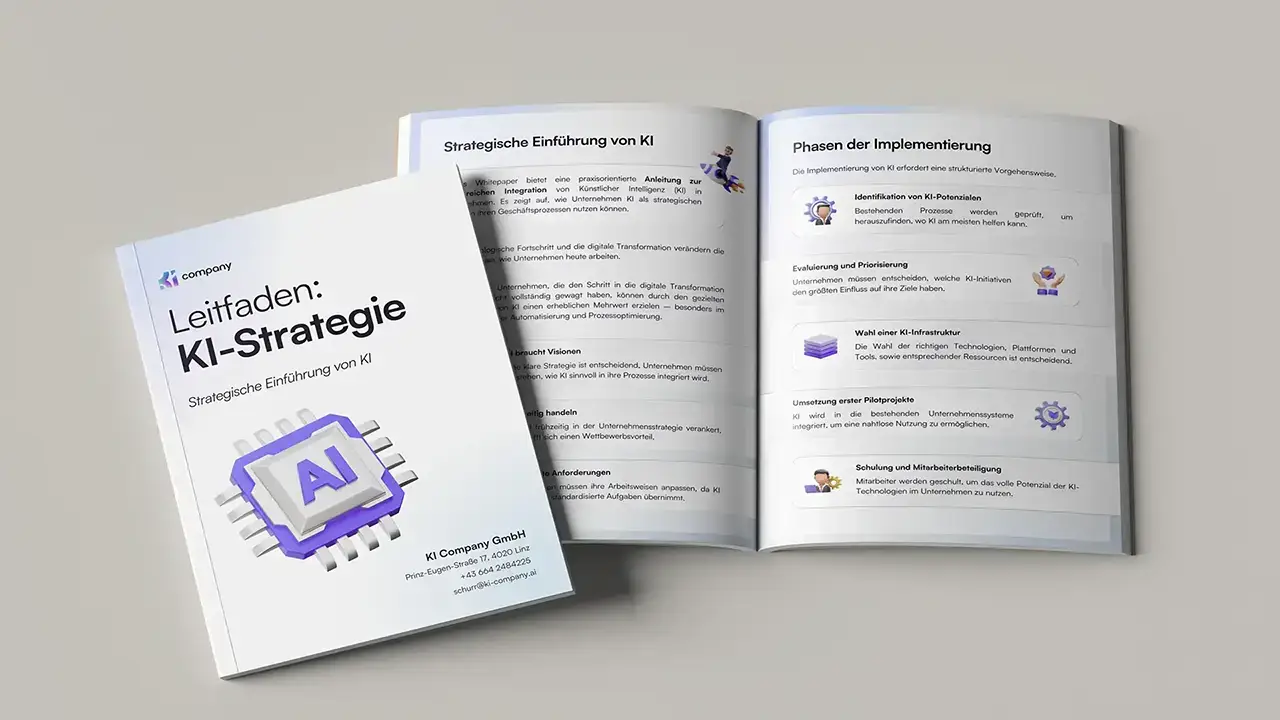
When you Microsoft Copilot on SharePoint If you want to implement safely and effectively, the KI Company is happy to provide non-binding advice. We help with SharePoint governance, authorization checks, pilot setup and scaling so that Copilot measurably reduces the workload and remains controllable at the same time.